Class Enrollment Software: How One Signup Updates Payment, Roster, and Reminders
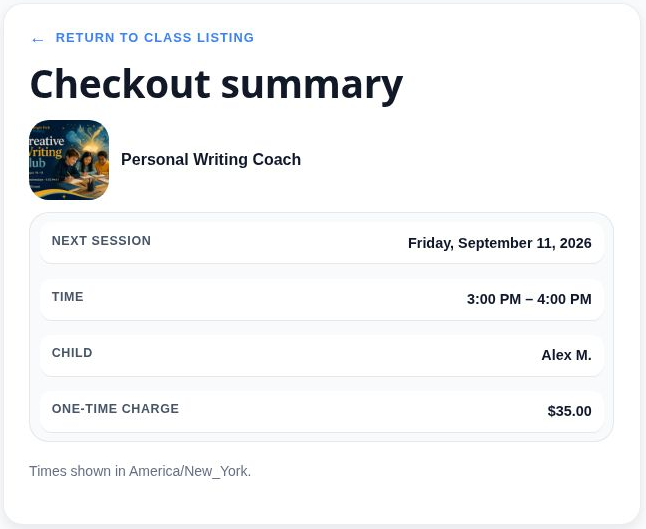
A parent chooses a class, selects a learner, and completes checkout.
That single action should do more than collect payment.
The seat should be reserved. The student should appear on your roster. The enrollment record should show the correct status. The family should receive a confirmation. Upcoming reminders should use the same class and schedule information.
With the right class enrollment software, these records stay connected from the first signup through future payments, cancellations, and follow-up.
Without it, you often move the same information between a form, payment processor, spreadsheet, calendar, email tool, and billing system.
You shouldn't have six other things to update.
What happens when a parent enrolls
Here is the complete workflow inside Independent Educator Pro.
1. The parent visits your branded class page
The family starts on your educator website or an existing website that links to your IEPro class page.
Your class listing includes the information the parent needs:
- Class title and description
- Available dates and times
- Delivery method
- Price and billing cadence
- Seat availability
- Enrollment instructions
- Learner details
You can use IEPro as your full educator website, including your blog and class pages. If you already have a website, you can keep it and link families directly to your IEPro enrollment pages.

The family sees your brand, your offer, and your enrollment process. They do not need to move between unrelated tools to understand what they are buying.
2. The parent selects the class or session
The parent chooses the class time, billing option, or tutoring session that fits.
For a recurring class, you can set weekly or monthly billing. Billing frequency stays separate from how often the class meets. A class can meet weekly while families pay weekly or monthly, depending on how you configure the offer.
For tutoring and private lessons, the parent can select the learner, session option, date, and available time. You can also set booking notices and date exceptions so families do not book during times you are unavailable.
For a one-time workshop, the parent selects the single session and pays once.
The workflow changes based on your offer. The connected records do not.
3. The parent selects or adds the learner
The parent identifies the student who will attend.
IEPro connects the parent record, learner record, class, schedule, and enrollment. This matters when one family enrolls more than one learner or purchases more than one offer.
You do not need to copy a student's name from an intake form into a roster spreadsheet. The enrollment creates or updates the relevant record as part of checkout.
4. Stripe processes the payment
The parent completes checkout through Stripe.
IEPro supports:
- One-time payments
- Weekly recurring billing
- Monthly recurring billing
- Set-length billing structures
- Discounts and enrollment fees where supported
- Stripe Connect payouts
Payment processing remains connected to the enrollment. You can see whether the enrollment is active, delinquent, or canceled instead of checking a separate payment dashboard and manually comparing it with your class list.
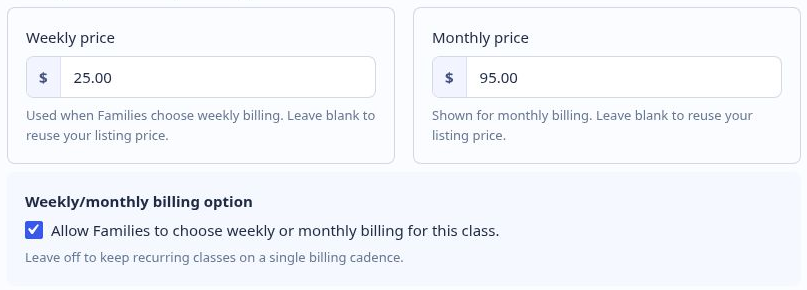
IEPro does not process payments itself. Stripe handles payment processing and educator payouts. Stripe processing fees apply per transaction.
One signup updates the seat and roster
When payment succeeds, IEPro activates the enrollment and reserves a seat according to your class settings.
The student appears on the relevant roster. The schedule remains tied to the enrollment. The seat count reflects the new enrollment.
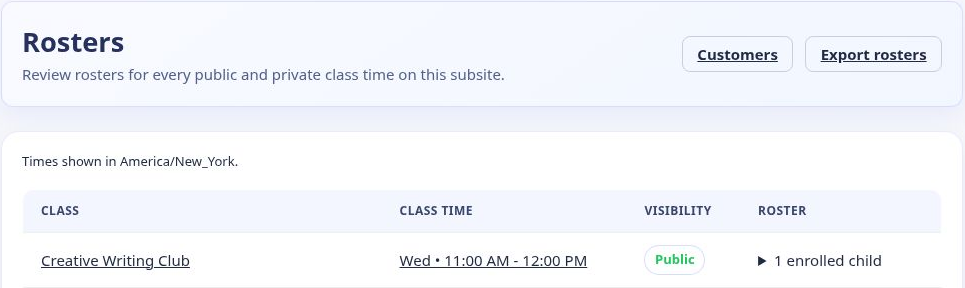
This is the core difference between connected class management software and a collection of separate tools.
With separate tools, you might need to:
- Check whether the payment succeeded.
- Open a spreadsheet.
- Add the student to the roster.
- Reduce the available seat count.
- Add the family to your email list.
- Create a calendar entry.
- Send a confirmation manually.
- Set a reminder for the next class.
With connected class enrollment software, the enrollment record drives these class operations together.
You still control your schedule, policies, capacity, and communication. You simply stop rebuilding the same record in several places.
Confirmation and reminder emails use the same record
After enrollment, the family needs clear information.
The confirmation should reflect the class or session they selected. The reminder should use the correct date, time, and learner record. If you change relevant class information, you should not need to rewrite every message by hand.
IEPro connects enrollment information with parent and learner records, schedules, rosters, and reminders.
That gives you a more consistent communication sequence:
- The parent completes checkout.
- The enrollment confirmation is sent.
- The student appears on the roster.
- The family receives upcoming class reminders.
- Your class view shows the current enrollment.
- Enrollment history remains available for future reference.
This is one reason student registration software matters for independent educators. Registration is not finished when a form is submitted. It continues through payment, scheduling, reminders, attendance preparation, and future billing.
What happens when a recurring payment renews?
A recurring class enrollment continues according to its billing setup.
When a renewal succeeds:
- The recurring payment is processed through Stripe.
- The enrollment remains active.
- The student keeps their place in the class.
- The roster stays current.
- Future reminders continue to use the active enrollment.
You do not need to create a new enrollment for each billing cycle. The recurring billing record remains connected to the class and student.
This is the practical role of a recurring class billing system. It does more than charge a card. It keeps the payment status and class status aligned.
If the family cancels, the enrollment can end according to your configured process. The associated seat can become available again. You can see the change in the relevant class and enrollment records.
What happens when a payment fails?
A failed payment should not disappear into a separate billing tool.
When a payment fails, the enrollment can enter payment-recovery handling according to your configured policy. You can review the payment state and follow up with the family instead of discovering the issue later when a student appears on a roster without a current payment.
The workflow gives you a clear set of conditions:
Payment succeeds
The enrollment becomes active, the seat is reserved, and the student appears on the roster.
Payment renews
The recurring enrollment remains active and the next billing cycle continues.
Payment fails
The enrollment can enter payment-recovery handling, allowing you to review the account and contact the family.
Family cancels
The enrollment can end and the associated seat can become available again.
Schedule changes
Relevant class and enrollment information can be updated without rebuilding the entire workflow manually.
That visibility is useful whether you run three classes or manage several formats at the same time.
Use the same system for different teaching formats
Your business may include more than one type of offer. Good software for independent teachers should support those formats without forcing you into separate systems.
IEPro supports:
- Recurring classes: Run ongoing weekly or monthly classes with seat limits, renewals, and recurring billing.
- Set-length programs: Build six-week courses, semester-style programs, camps, and other defined programs.
- One-time classes and workshops: Sell assessments, single sessions, and workshops with one-time checkout.
- Tutoring and private lessons: Manage availability, booking notices, recurring sessions, and date exceptions.
- Self-paced programs: Sell recorded lessons and digital resources alongside live teaching.
The format determines the setup. The connected workflow remains familiar.
You create the offer, set the schedule and pricing, publish the class page, and let families enroll. IEPro then connects checkout, billing, enrollment, access, scheduling, rosters, and reminders for that offer.
Keep parent interest connected before enrollment
Not every parent enrolls on the first visit.
Connect, IEPro's parent interest pipeline, helps you track conversations, follow-up, enrollment links, and next steps before a family completes checkout.
You can record that a parent is interested in a specific class, see which families need a reply, and send the relevant enrollment link when they are ready.
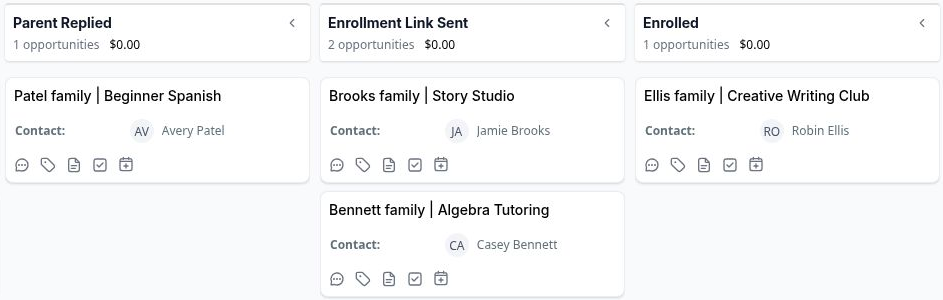
The interest record and enrollment record serve different purposes. Connect helps you manage the conversation before signup. Class enrollment software manages the operational record after signup.
Together, they give you visibility from initial interest through active enrollment.
What to look for in class enrollment software
When you compare tools, focus on the complete workflow rather than a single feature.
Look for software that lets you:
- Publish branded class and enrollment pages.
- Set seat caps and manage availability.
- Accept one-time and recurring payments.
- Connect payments to active enrollments.
- Keep rosters current after checkout.
- Track parent and learner records.
- Send confirmations and reminders.
- Handle renewals, cancellations, and failed payments.
- Support classes, tutoring, workshops, and self-paced programs.
- Follow up with interested families before they enroll.
That combination is more useful than adding another form or payment link to your current collection of tools.
One system underneath it all
You run the class. You set the price. You choose the schedule, capacity, billing cadence, and cancellation process.
The software should keep the operational records connected while you make those decisions.
That is the purpose of IEPro as educator scheduling software, tutoring business software, and class management software in one platform. A parent signup updates payment, enrollment, seat availability, roster information, schedules, and reminders through one connected workflow.
See the IEPro walkthrough to view the process from offer creation through parent checkout and roster management.
Try IEPro for 30 days
Run your classes, enrollment, payments, rosters, parent follow-up, and educator website in one connected system.
30 days free.
Then $97/month.
Nothing charged today.
Cancel anytime.
Start your 30-day free trial or book a 15-minute call to review how the workflow fits your business.